WP Password Redirect

Wordpress Password Redirect
Usage
The plugin can be used in two different modes. All options are configured via the following shortcode on the ‘form page’
[wppwredirect]
Redirect to Pages (default)
To output a password form, and redirect to a page, you’ll need to ensure that any candidate target pages:
- are a ‘child’ of the page with the shortcode
- are password protected
Shortcode Usage
[wppwredirect]
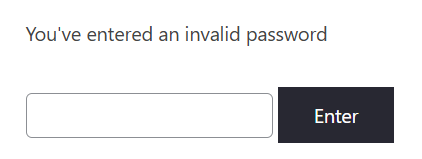
The shortcode above will output:
- A form with the ID=’wpPWLogin’
- A submit button with the label=’Enter’
On submission, all ‘child pages’ will be returned via a query, and their passwords checked against the entered password. The first page to be matched will be the target of a redirect.
If no page/password is matched, then an error message will be returned to the screen.
The default error message is:
You've entered an invalid password
The default behaviour can be altered (for page queries) by adding any of the following attributes:
| Attribute | Value Options | Effect |
|---|---|---|
| ID | Any string | Changes the ID of the output form, in order to target any CSS changes |
| type | page or post | Denotes the type of Wordpress objects to search. Default is ‘page’ |
| posttype | Any string | Denotes the posttype to search (if using ‘post’ as type). This allows filtering based on custom post type that may be used by a plugin - e.g. wpdmpro for Wordpress Download Manager. Default is empty string - i.e. search ‘standard’ posts |
| errormsg | Any string | Overrides the default error message. Useful when you’re logically using the ‘passwords’ as some other term - e.g. ‘codes’ or ‘ID’ - depending on your workflow. |
Further Examples
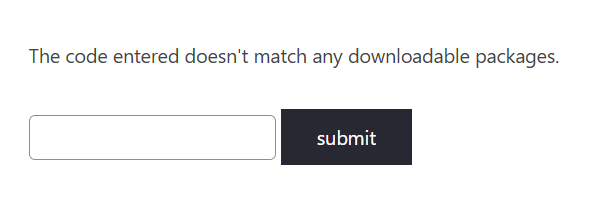
[wppwredirect label="submit" type="post" posttype=wpdmpro errormsg="The code entered doesn\'t match any downloadable packages."]
This changes
- the button to be labelled ‘submit’
- posts to be searched instead of pages
- posttype of wpdmpro to further filter the query (Wordpress Download Manager packages)
- error message of “The code entered doesn’t match any downloadable packages.” - Note the escaped apostrophe in the shortcode, in order to display properly on the page.
[wppwredirect ID="myForm" type="post" ]
This:
-
Changes the form to be output with an ID of “myForm”. This allows styling to be applied - e.g.
#myForm { … }
-
Searches standard posts (with no custom post type)